Smarter Replenishment Logic, Customizable Tab View for POs, and more
Key Changes:
Replenishment
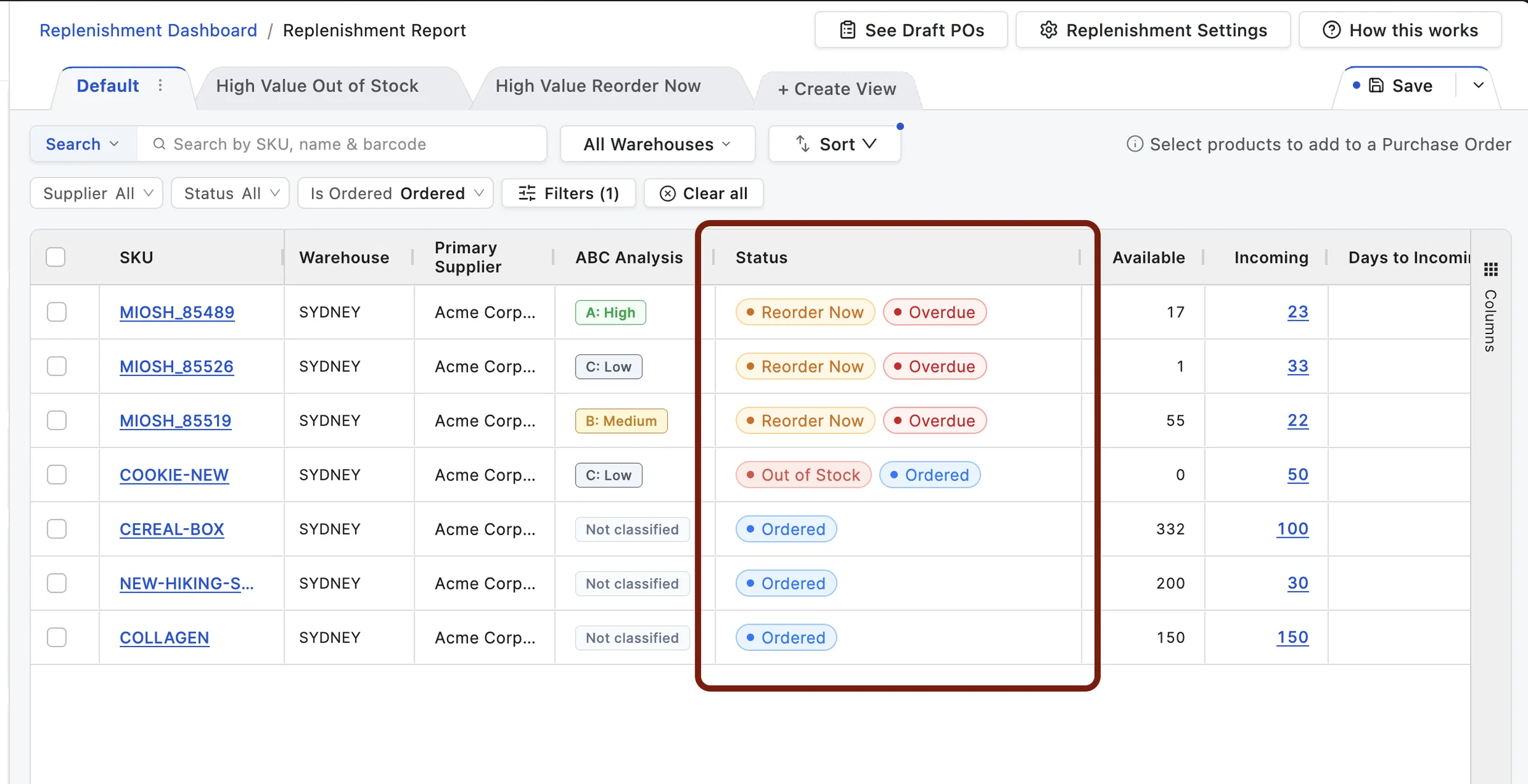
- New ordered inventory status added alongside the existing stock status in the Replenishment Status column
- New Replenishment Timeline card showing stockout history, incoming deliveries, and reorder timing
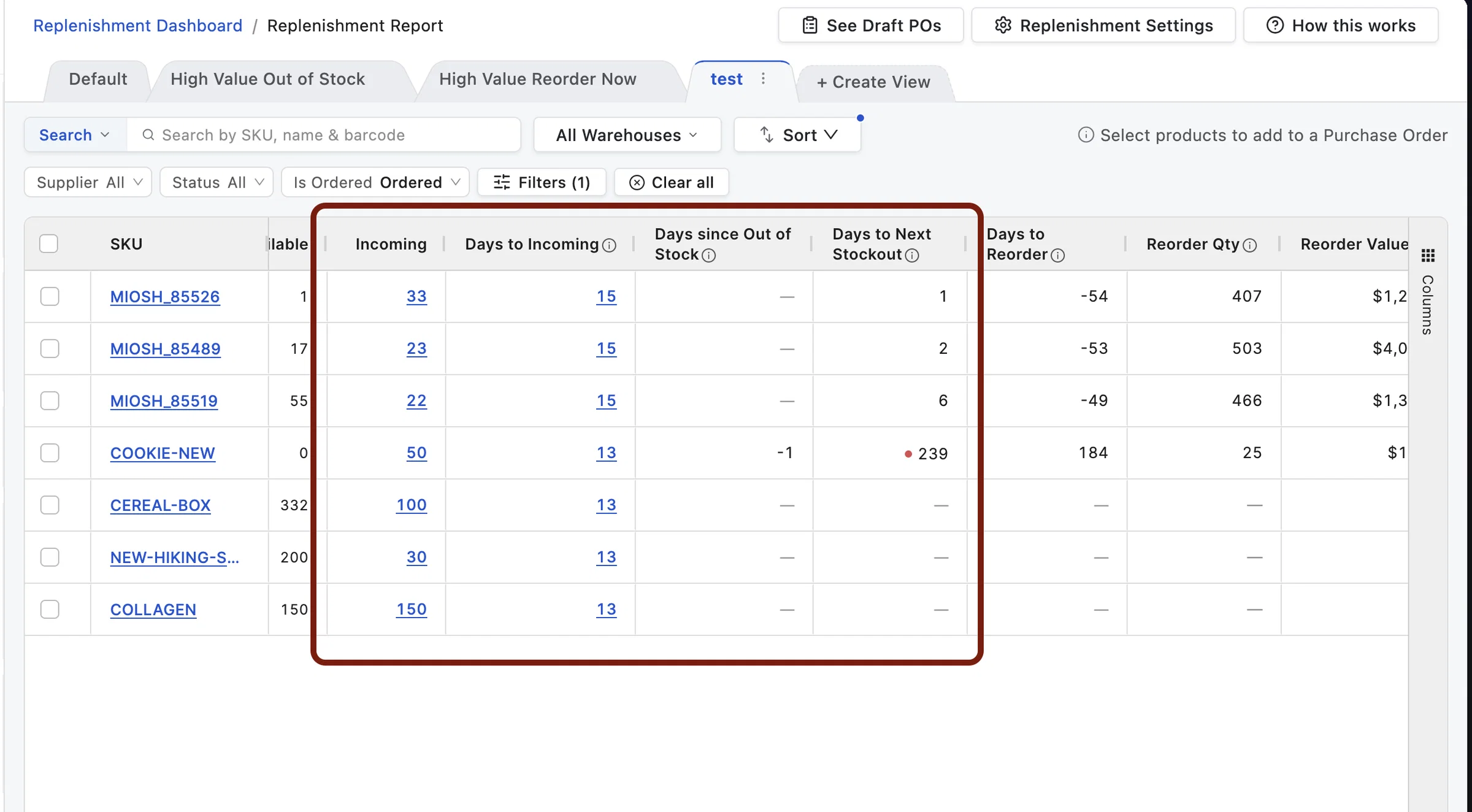
- Column updates: added Days since Out of Stock and Days to Incoming, improved the Days to Next Stockout logic, and merged the Incoming Before/After columns
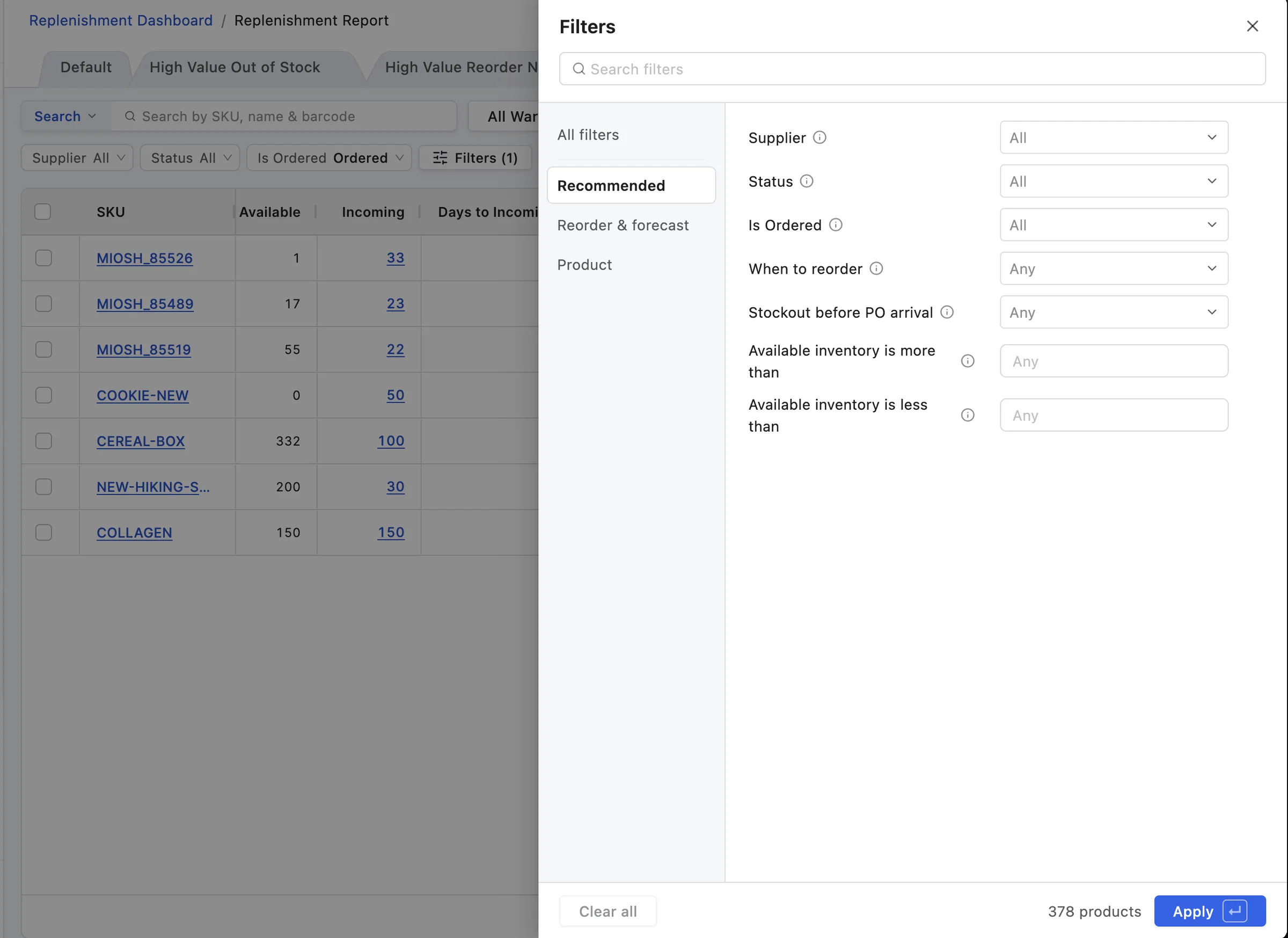
- Filters reworked into a side-drawer with recommended filters, search, and explicit save
Purchase Orders:
- Introducing Saved Tabs with customizable filters for POs and Stock Transfers
- New filters for key PO dates, including confirmation date, ship by date, expected arrival, and last updated
- Ship By Date can now be included in Purchase Order PDFs
Improvements to Replenishment
📊 Ordered Inventory status added to the Replenishment Status column
The Status column now has a new ordered inventory status (Not Ordered, Ordered, or Overdue) along with the existing inventory status (Out of Stock, Reorder Now, Reorder Soon, or Healthy).
📅 Easily view the Replenishment Timeline
A new Timeline card plots how long you've been out of stock, when the next PO delivery is expected, when you should next reorder, and the next stockout. It also flags unavoidable stockout periods caused by PO delays or late ordering.
📋 Changes to columns for clarity and usability
➕ New columns: Days since Out of Stock and Days to Incoming
Days since Out of Stock shows how long a product has been out, and Days to Incoming shows how soon its next delivery is expected. We've also added a plain Incoming column showing the incoming quantity.
✏️ Days to Stockout has been replaced with Days to Next Stockout
The logic has been improved to consider your incoming Purchase Orders and suggest your next Stockout Date.
♻️ Merged the Incoming Before/After Columns into a single Incoming column for clarity
✨ Improved side-drawer view for Filters
We've made it easy to access to Recommended filters, and added a search operation for filters.
Filters only get saved to the view when you explicitly click the "Save" button. It does not get automatically saved to the view.
Improvements to Purchase Orders and Stock Transfers
🗂️ Introducing Saved Tabs with Customizable filters
You can now save your own filtered views for Purchase Orders and Stock Transfers, so your most-used filters, columns, and sort order are just a click away.
If you used the older Confirmed status for your workflows, you can use "Has Confirmation Date" filter and Saved Tabs to replicate the same functionality.
🗑️ Remove any Tab Views you do not require
You can delete any Tabs you do not use, including the pre-defined Status tabs. No data (except for the saved filter combinations) is lost. If required, you can re-create them with the same filters as before.
👀 Improved drawer-view for Products Received and Products Ordered reports
📅 New filters for key Purchase Order dates
You can now filter by confirmation date range, ship by date, expected arrival, and last updated range. You can also filter for whether or not a PO has these dates (e.g. Has Confirmation Date).
🛳️ Ship By Date can now be included in Purchase Order PDFs
You can include it in Purchase Order PDFs by going to Settings > Purchase Order Settings > enabling Ship By Date.
If you have any questions or feedback about these updates, we'd love to hear from you! You can also react to this annoucement let us know your thoughts on these updates.